Claude Code
Opus 5.5, Sonnet 5.5, and Haiku 5.5. With Jev on, an Auto model picks Sonnet or Opus for each message.
Tiles · Master · Scheduled tasks · iPhone
 armadai
Download
armadai
Download
A Mac workspace for AI agents, side by side
Every feature of Armadai for Mac, plus the iPhone and Chrome betas, grouped the way you work.
macOS 14+ / Apple Silicon + Intel
7-day free trial · No card needed
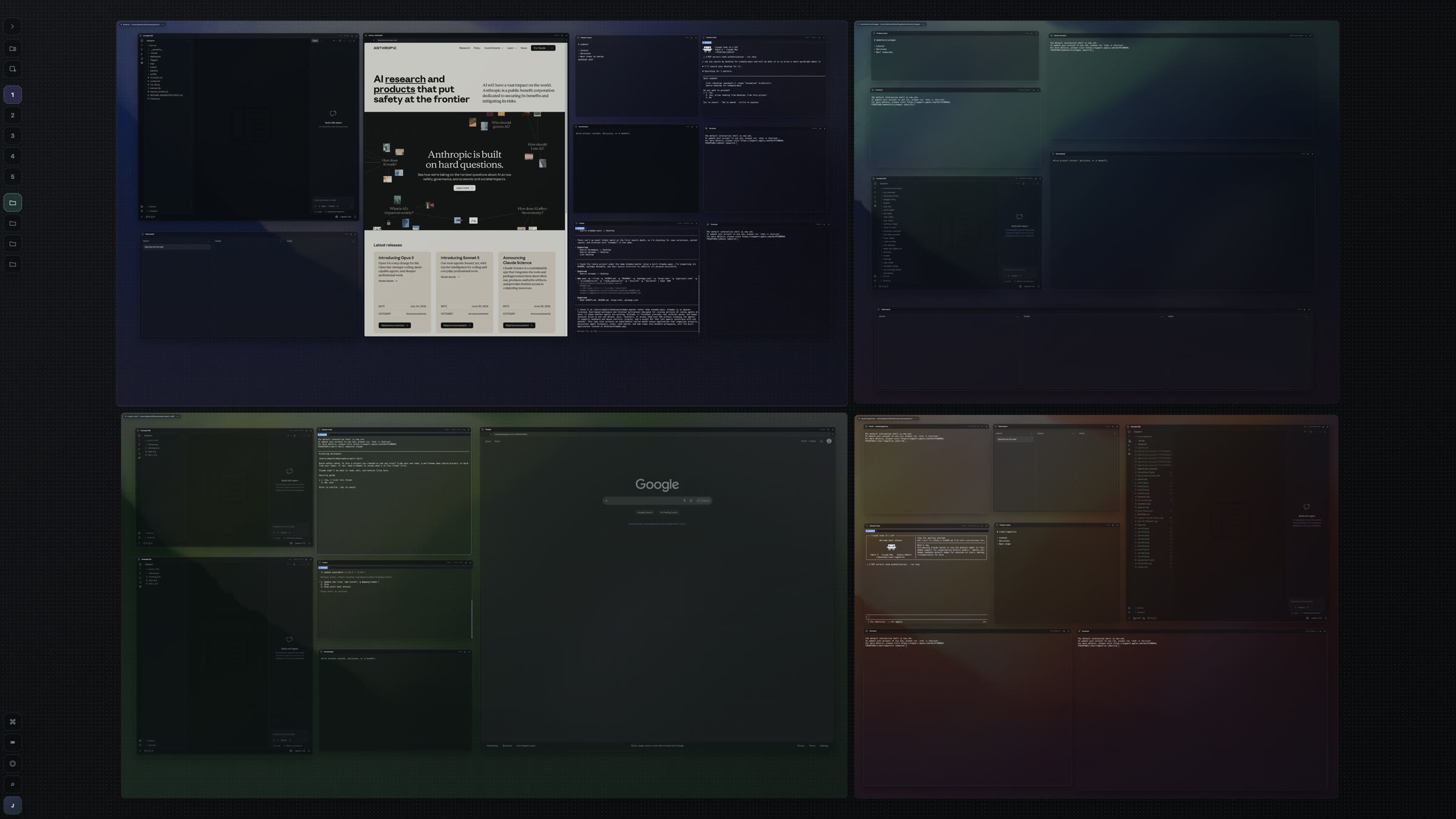
ARMADAI FOR MACmacOS 14+ / APPLE SILICON + INTEL
Each one runs as a terminal tile, as a canvas’s master, in scheduled tasks, and from your iPhone. Mix them freely in the same canvas and the same workspace.
Opus 5.5, Sonnet 5.5, and Haiku 5.5. With Jev on, an Auto model picks Sonnet or Opus for each message.
Models from Codex’s own catalog, with effort levels that follow the model. It also runs as a native Codex Agent tile.
Models from Grok’s own catalog, with Refresh and Custom model ID. Its credit meter shows in Accounts and on its tiles.
Models from Cursor’s own catalog, with Refresh and Custom model ID. Cursor accounts can also be added with API keys.
Install and sign in to all four from Settings → Accounts. Armadai uses any login already on your Mac, and a Grok or Cursor tile offers Install Grok… or Install Cursor… when the agent isn’t there yet.
Each canvas has its own master. It sees the canvas’s workspaces and agents, reads their output, launches and messages them, and arranges the tiles.
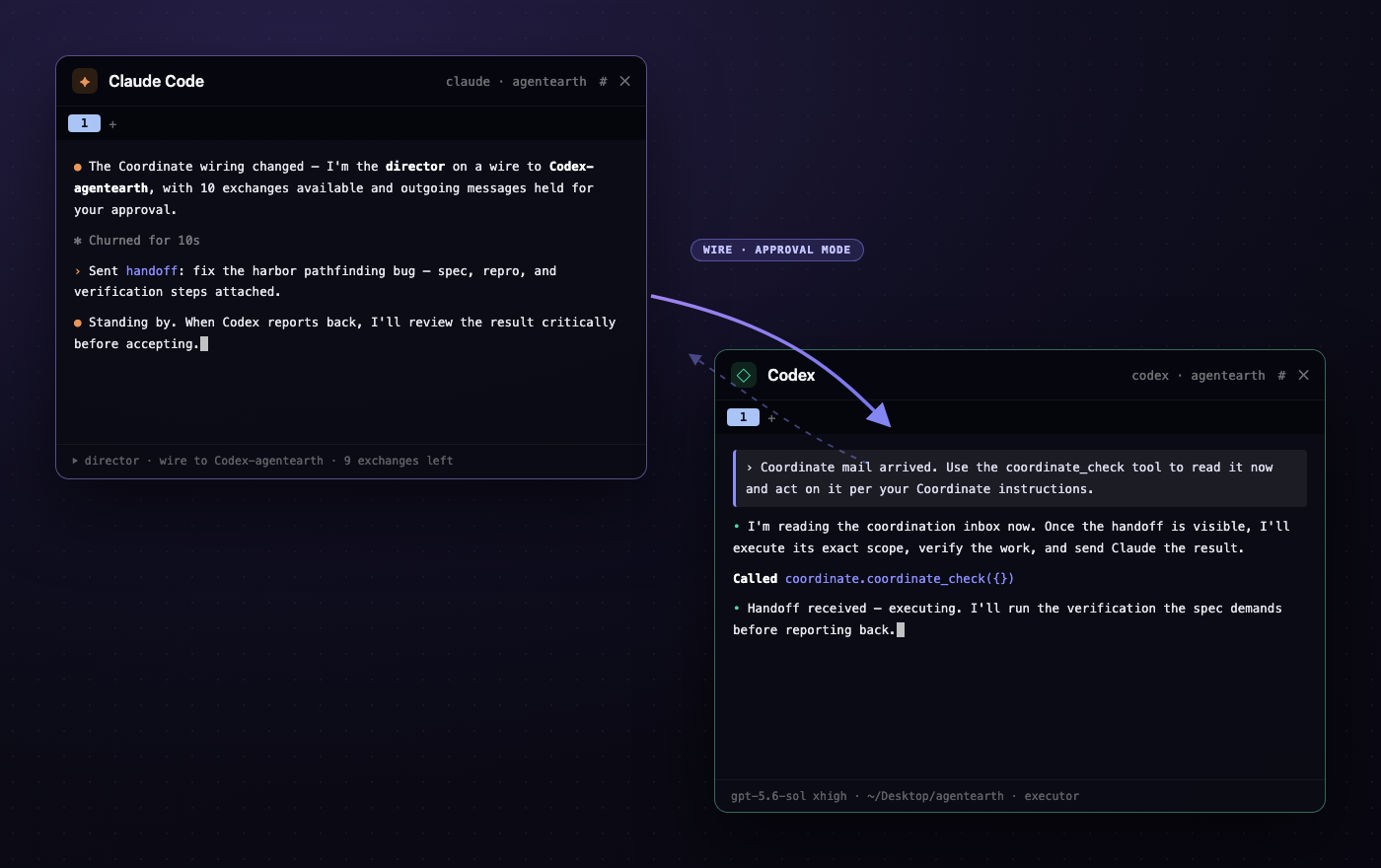
A new canvas starts with a setup card. Pick an agent that’s ready, or follow Install → Sign in → Ready; Set up… installs it, signs you in, and makes it the master.
Type, dictate, or attach. Drag in files, folders, and images, or paste a screenshot; HEIC and large images are converted for you.
Keep sending; your messages wait their turn. Stop the master’s turn without stopping its agents, and read long runs folded into one line.
Type / for a ranked menu of Armadai’s commands, each agent’s own commands, your skills, and MCP prompts. /claude opus high switches agent, model, and effort in one step.
Switch modes with Shift+Tab or /mode. When a plan is ready, a card asks whether to implement it, and No, keep planning opens a box for what to change.
Bring up each agent’s own permissions screen inside Armadai: Claude Code’s rules and tabs, Codex’s pick list, or Ask and Always approve for Grok and Cursor.
Ask the master to report back when an agent finishes. It tells finished work, plans ready for review, and blockers apart, and you can cancel a follow-up without stopping the agent.
Connect agents through explicit links with roles, messages, status, transcripts, and approval handling. The master delegates work and collects the results.
Short requests such as “open the shop workspace” happen instantly: show a workspace, start an agent, tidy up, lay out the canvas, or add a browser.
Lay out work across as many canvases as you like. A workspace keeps one project’s agents, terminals, editor, browser, notes, and task boards together.
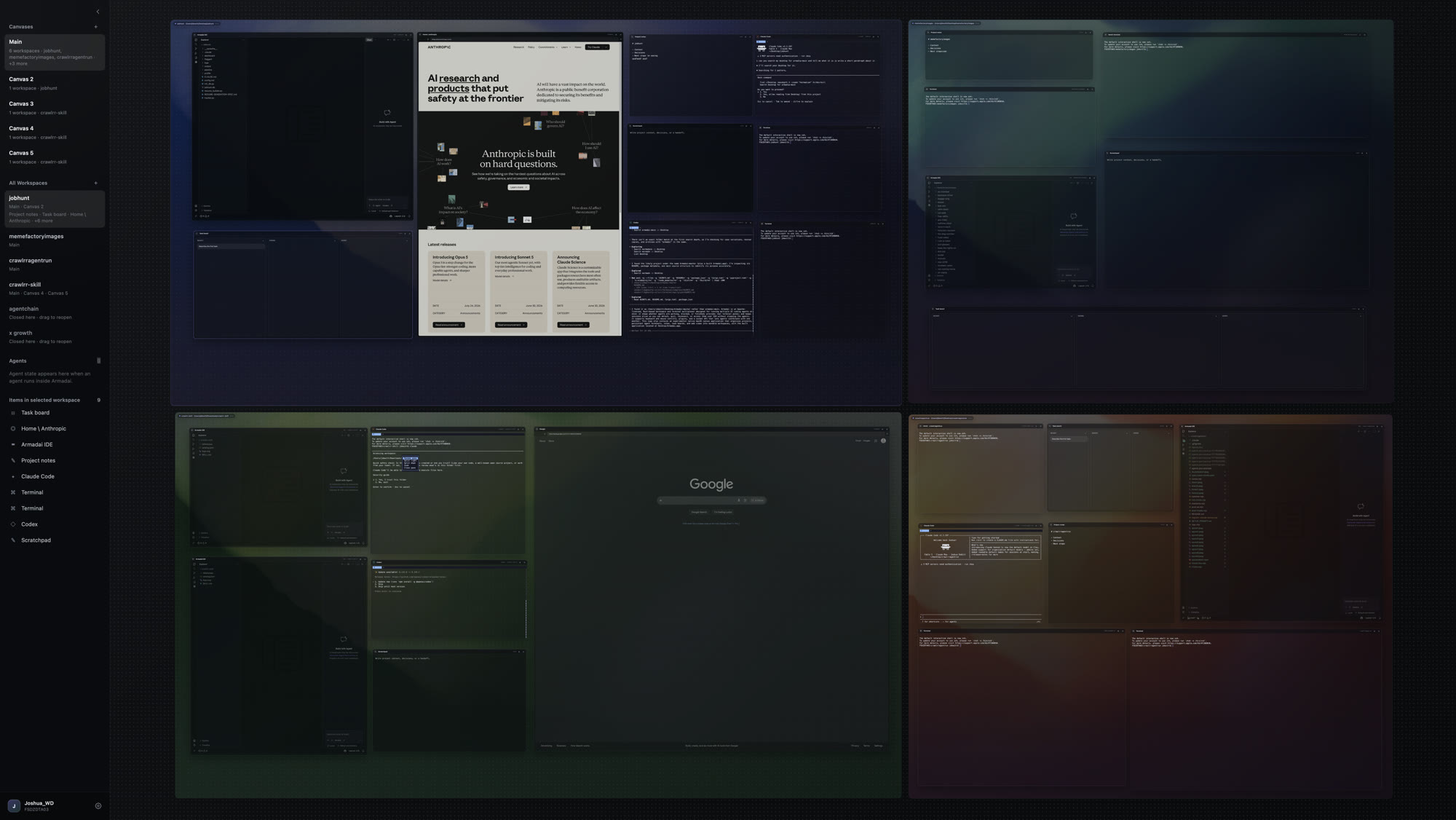
Keep any number of persistent canvases. Pan, zoom, move, resize, and layer tiles; each canvas keeps its own theme, layout, and master conversation.
Canvas View shows the whole spatial layout; Tab View shows one workspace at a time. Dragging a tile brings it and its workspace forward.
Add workspace → New workspace… creates a project folder, and Open existing folder… brings in one you have. Arrange them freely, in a row, a column, or a grid.
Shell terminals, Claude Code, Codex, Grok, Cursor, Codex Agent, a VS Code–based editor, browsers, notes, task boards, visualizations, and iOS simulators.
Switch to a compact floating dock without restarting agents. It holds masters, canvases, sessions, approvals, and scheduled tasks, and remembers its place across displays.
A menu bar item opens the master, canvases, agents and approvals, and scheduled tasks. Show Master has a shortcut: ⌃⌥A or ⌃⌥Space.
Pure Black, Graphite, Deep Ocean, and Dusk Glass. Each canvas can have its own theme and transparency.
A ⌘K command palette, shortcuts, context menus, and settings search. Two fingers pan the canvas; hold Option to scroll inside a tile.
Keep notes beside your work and draw on canvases or workspaces. The master draws editable flowcharts, sequences, trees, and grids, and revises them on request.
An editor, terminals, browsers, and simulators share a workspace with the agents doing the work, and Git worktrees keep each agent’s changes apart.
A VS Code–based editor sits beside shell terminals and agents. Run dev servers, builds, and tests, and drop files on a terminal to paste their paths.
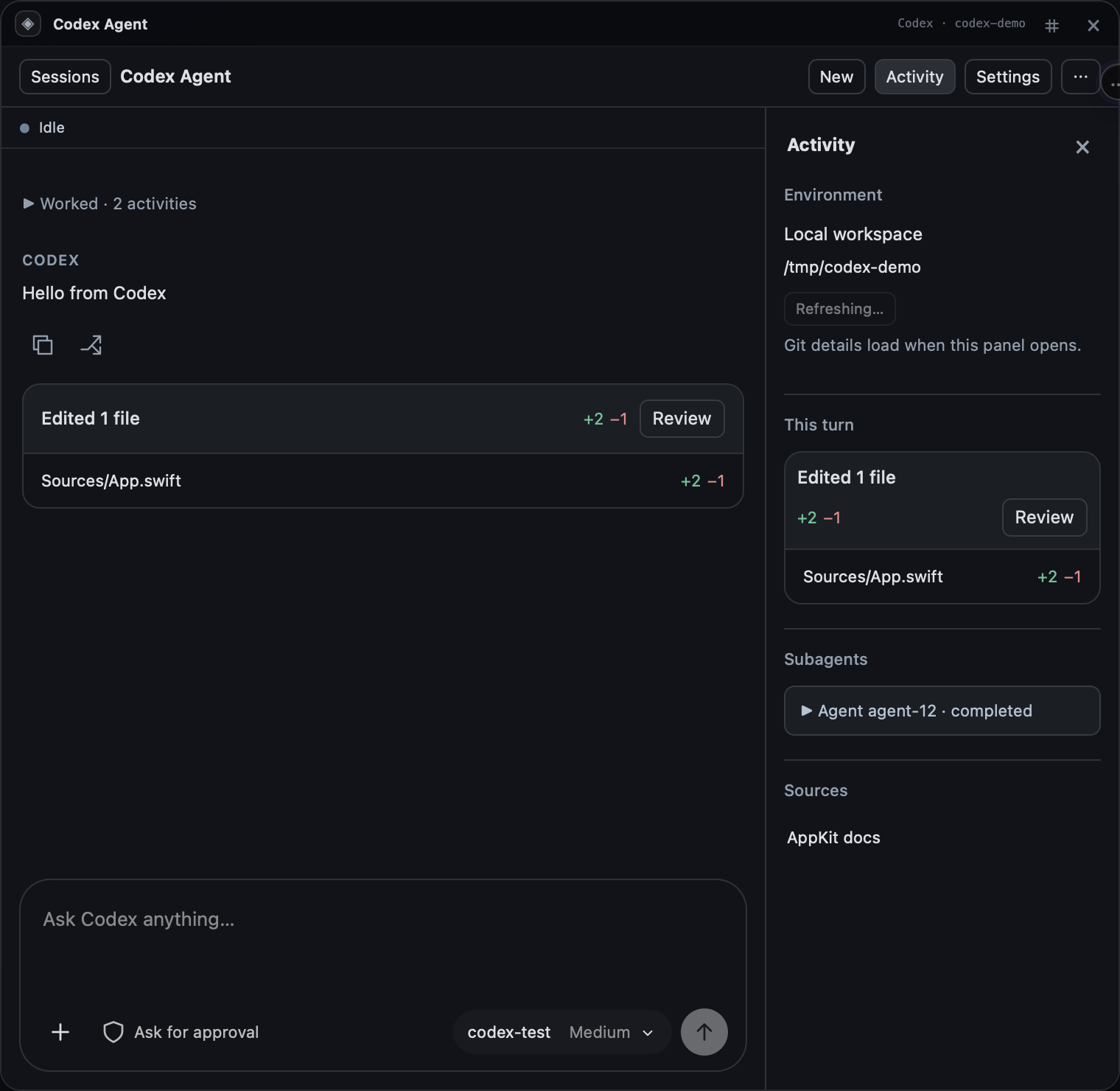
A structured Codex conversation with streamed replies, tool activity, and approvals. Copy or Fork any reply, into this workspace or a new Git worktree.
Give every agent its own worktree, or choose per launch. Inspect agent worktrees, and choose what to keep or remove when an agent closes.
Board, Backlog, Table, Calendar, and Dashboard views of the same work, with priorities, owners, dependencies, checklists, sprints, and work-in-progress limits.
Hand a ticket to a coding agent in its own worktree and follow it through to review. GitHub workflows prepare pull requests linked to the task and its evidence.
Ask an agent to build charts, simulations, or dashboards as HTML or React tiles. Preview them, publish a working version, view the source, or export the project.
Run a simulator inside a workspace: choose the device, tap and type, rotate, take screenshots, and build and run the workspace’s iOS app.
Tabs with pinning, find on page, per-tab zoom, and downloads, and search with Google, DuckDuckGo, Bing, or Brave. The master can read console errors and capture pages.
Review working or staged changes, stage files, commit, and confirm a push, all from the Codex Agent tile.
Scheduled tasks, several accounts, and switching at usage limits keep agents working while you’re away. Sessions pick up where they left off.
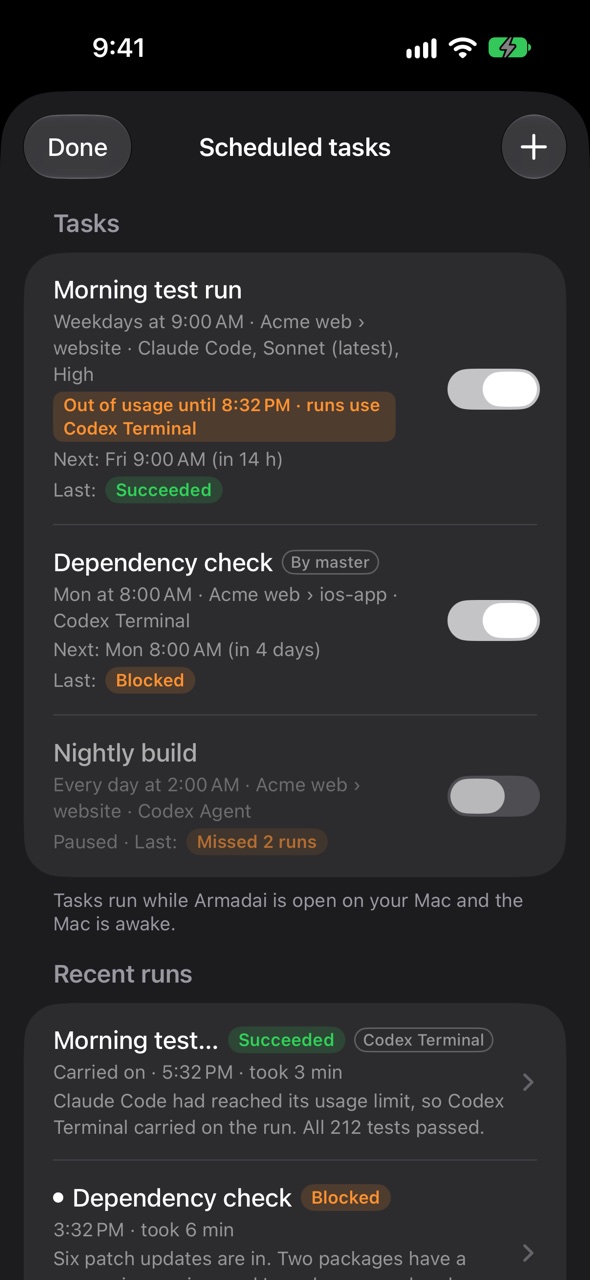
Set instructions, canvas, workspace, agent, model, effort, account, and approvals: Automatic or Wait for me. Repeat hourly, daily, on weekdays, on chosen days, or by cron.
Pause, edit, or Run now. Each run keeps its results, what the agent reported, evidence, and the conversation, and you can message the task’s agent directly.
At a usage limit, a run tries your other accounts, then other agents in the order you choose. Interrupted runs pick up in the same tile, worktree, and conversation.
Add and name more accounts, then choose one for each master, workspace, tile, or task. Usage shows in Accounts, the sidebar, the master’s header, and agent tiles.
When an account runs out, continue on another account in the same conversation, hand the work to another agent with a summary, or wait for reset. Automatic switching counts down from 5 seconds, with Undo.
Save keys for Anthropic, OpenAI, xAI, and Cursor. Bill a subscription, an API key, or a subscription with API-key fallback, for the whole app or one master, workspace, agent, or task.
Canvases, layouts, and conversations are saved. The session helper keeps terminals running while the app is closed, and agents resume after restarts and updates.
Optionally record terminal output on your Mac. Browse, export, and delete recordings, and set how long they’re kept and how much space they may use.
Update Armadai and your agent CLIs together, timed around agent activity. Agents resume their conversations afterwards.
Masters and agents can read and operate Mac apps when you turn computer use on. Jev, an optional fast assistant, makes those steps and the rest of Armadai quicker.
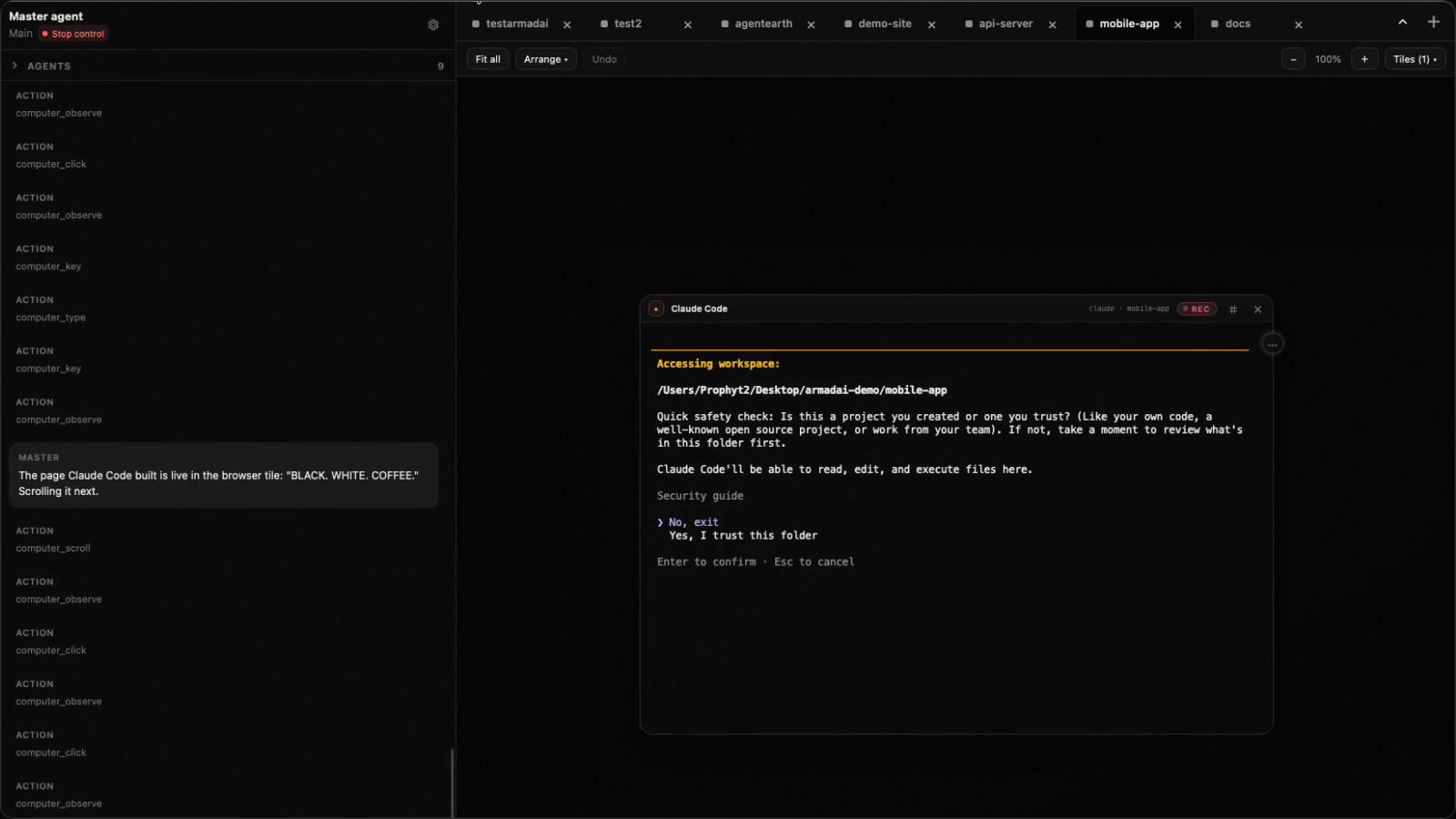
Masters and agents read and operate Mac apps through accessibility information, screenshots you allow, and mouse and keyboard actions.
Turn computer use on for each canvas and each agent. Shared resources are coordinated between agents, with foreground-takeover rules and Stop controls everywhere.
When a step in Chrome needs more than the extension, such as a native dialog or a browser shortcut, Armadai completes it with computer use.
An optional fast assistant. It carries out quick requests instantly, reads unfamiliar agent screens, and tells when an agent has finished.
With Let Jev see screenshots on, Jev finds unlabelled controls during computer use. In a simulator, agents can tap a control just by describing it.
With Jev on, Claude Code’s Auto setting picks Sonnet or Opus for each message.
See which agents are working, waiting, blocked, or asking, across tiles, the master, the sidebar, the dock, and your iPhone. Hover a waiting agent to answer with its real choices.
Put each agent on Auto or Manual approval, or turn on Auto-approve all agent requests with Except what Jev flags to leave risky requests to you.
Chime, Whoosh, Beep, or Pop when an agent finishes or needs approval, with volume and a preview.
Every plan includes a monthly Jev allowance, shown as a percentage used, with its reset date on the Mac and the iPhone.
An encrypted Password Manager, a Keychain-backed environment vault, and Touch ID keep credentials on your Mac. Each item says which agents may use it.
Logins, cards, secure notes, recovery codes, and custom fields in an encrypted vault on your Mac, with search, categories, favorites, tags, and archives.
Each item says which agents may find or use it. Protected login fills credentials for them, card fills ask you first, and sharing a note’s content is a separate choice.
Unlock with your password or Touch ID, auto-lock after 10 minutes, 1 hour, or 6 hours, or press ⌘⇧L. Authenticator codes, Chrome import, and encrypted backups are built in.
Keep environment variables and secrets in the macOS Keychain, scoped to the app, a canvas, or a workspace. Import .env files; newly launched agents get the values.
Sign in with an emailed code, email and password, Apple, Google, or X. Connect several methods to one account, and change your email or password anytime.
Turn on Use Touch ID on this Mac and Armadai locks at launch until you unlock it.
Remote controls the Armadai on your Mac from your iPhone, with everything end-to-end encrypted. It works with all four agents: Claude Code, Codex, Grok, and Cursor.
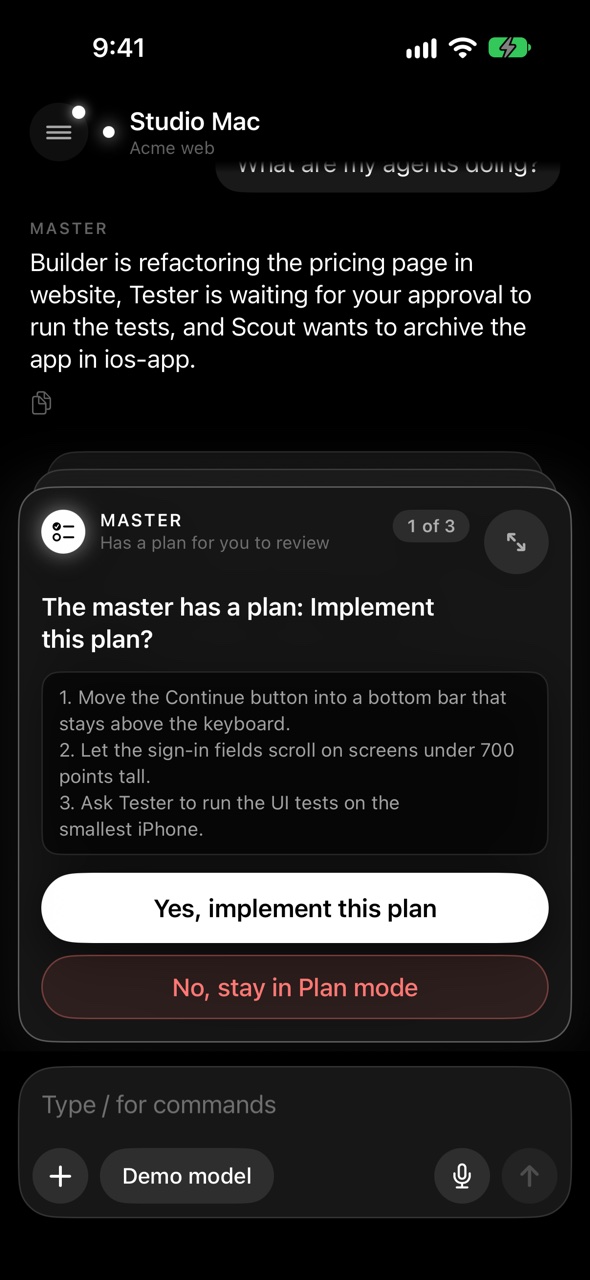
Sign in with your Mac’s account, tap the Mac, and check that both screens show the same 4-digit code. Or scan the QR code from Settings → Remote → Link a new iPhone.
Type, or hold to talk with a live transcript; Speak replies reads answers aloud. Attach photos and files, with photo location data removed before sending.
The same / menu as on the Mac, with a Recent section and hardware-keyboard support. Chips on the message box switch model, effort, and mode.
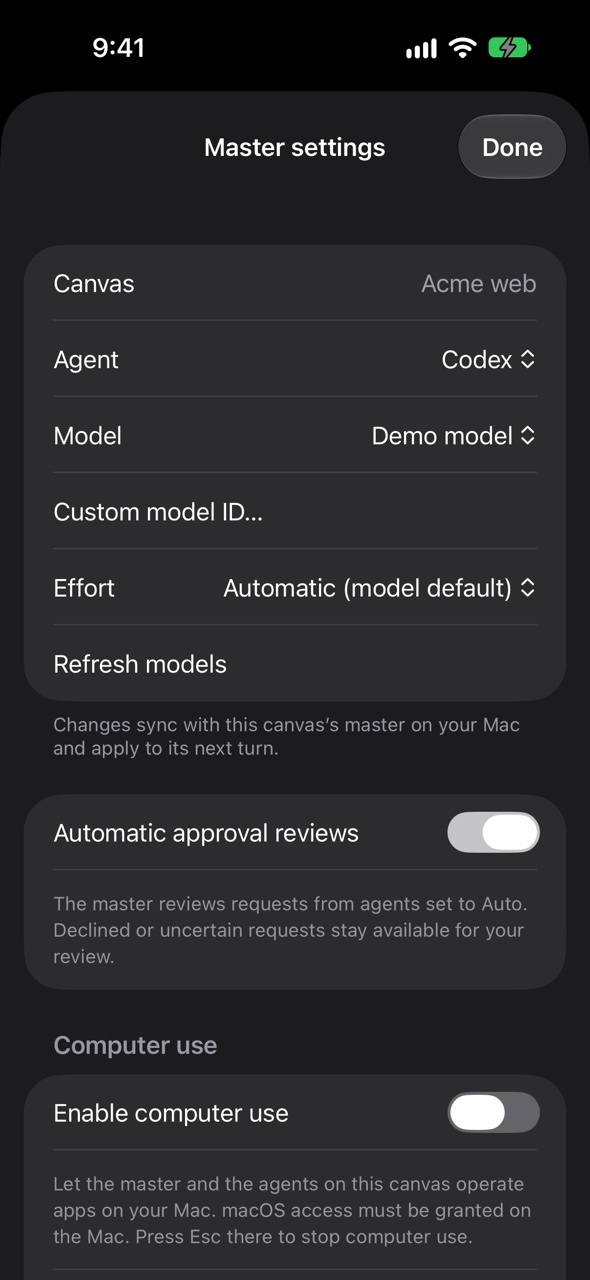
Choose the agent, model, effort, and approval reviews, and turn computer use and Jev on or off. Changes sync both ways with the Mac.
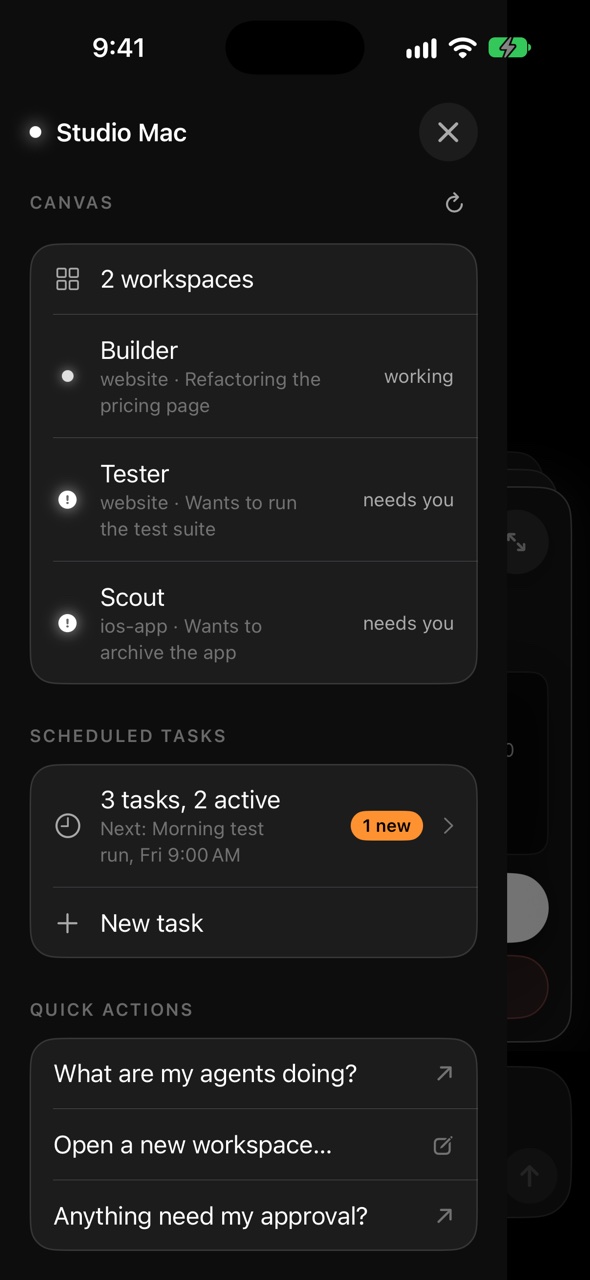
The side menu marks each agent idle, working, or needs you. Tap one to chat with it directly, and its tile comes forward on the Mac.
Pause or resume tasks with a switch, swipe to Run now, and create or edit them with the full form. See recent results and message a run’s agent.
Approval cards stack above the message box, oldest first, with each agent’s own Approve, Always approve, and Deny. Haptics mark each new request.
Get told when an agent needs approval while the app is closed. Urgent requests arrive at once, and tapping one loads the details securely.
Ask the master to text someone, and the phone shows the draft with its recipients and attachments. Open in Messages to send it.
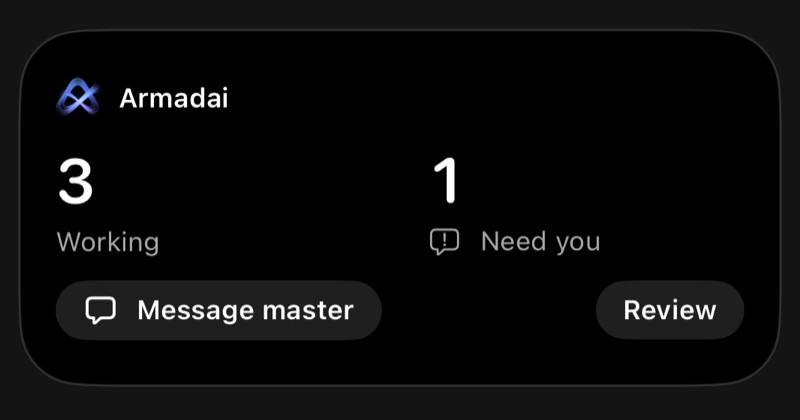
The Workspace Overview widget, on the Home Screen and Lock Screen, shows how many agents are working and how many need you, with Message master and Review.
Follow the focus project and its current step, with Review or Open. The Mac can start one even when the app is closed.
The app asks you to unlock Armadai at launch and hides behind a cover in the app switcher.
Before your first message to each agent, the app names the agent and its company and asks you to allow it. Change this anytime in Account.
Everything between your iPhone and your Mac is end-to-end encrypted, with forward secrecy. Device keys stay in the Keychain, and widget status is encrypted too.
How linking and encryption work, in plain language: Armadai for iPhone.
Agents work in your own Chrome, signed in to the sites you use, while you keep using it yourself. Chrome and Armadai connect on your Mac, with no server in between.
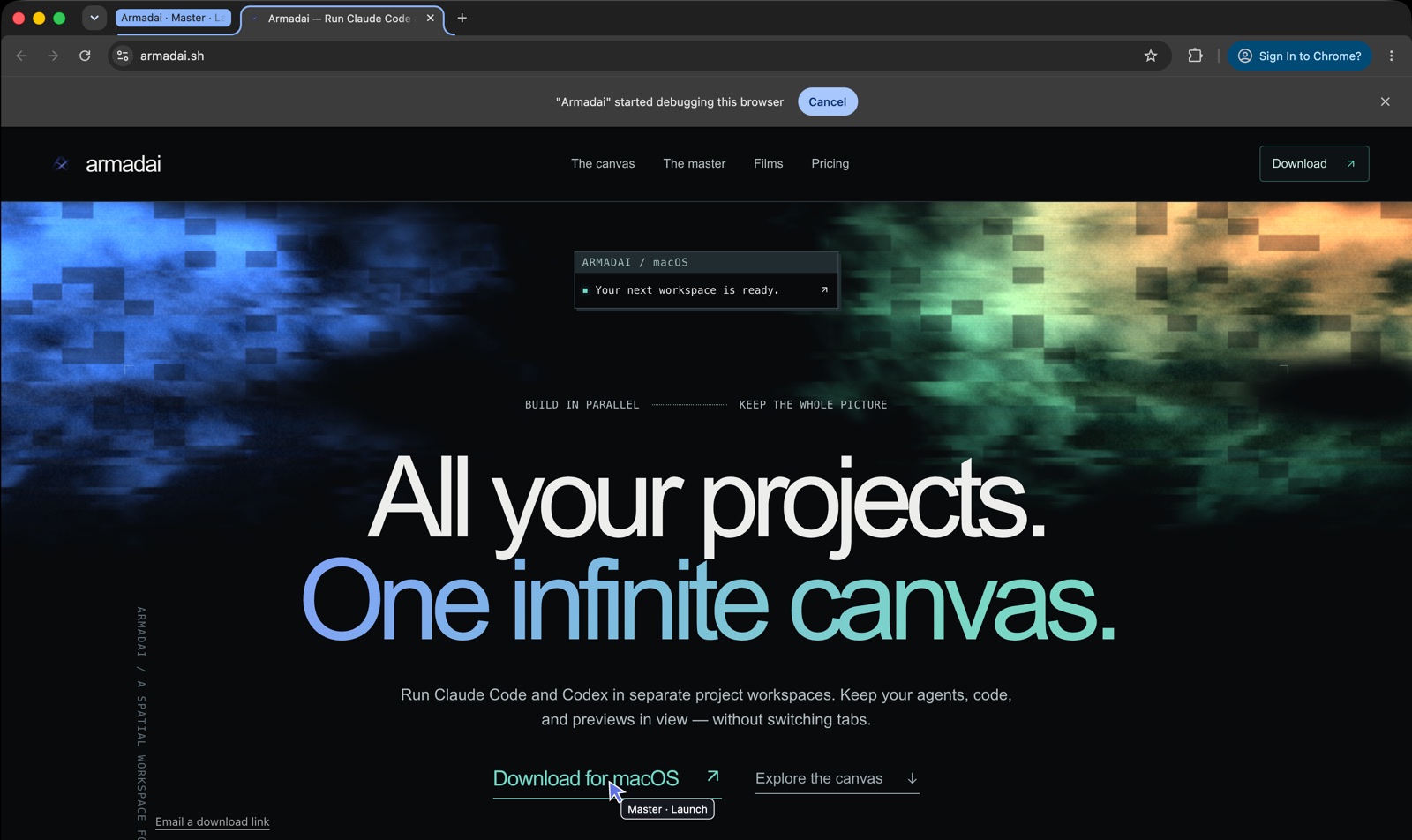
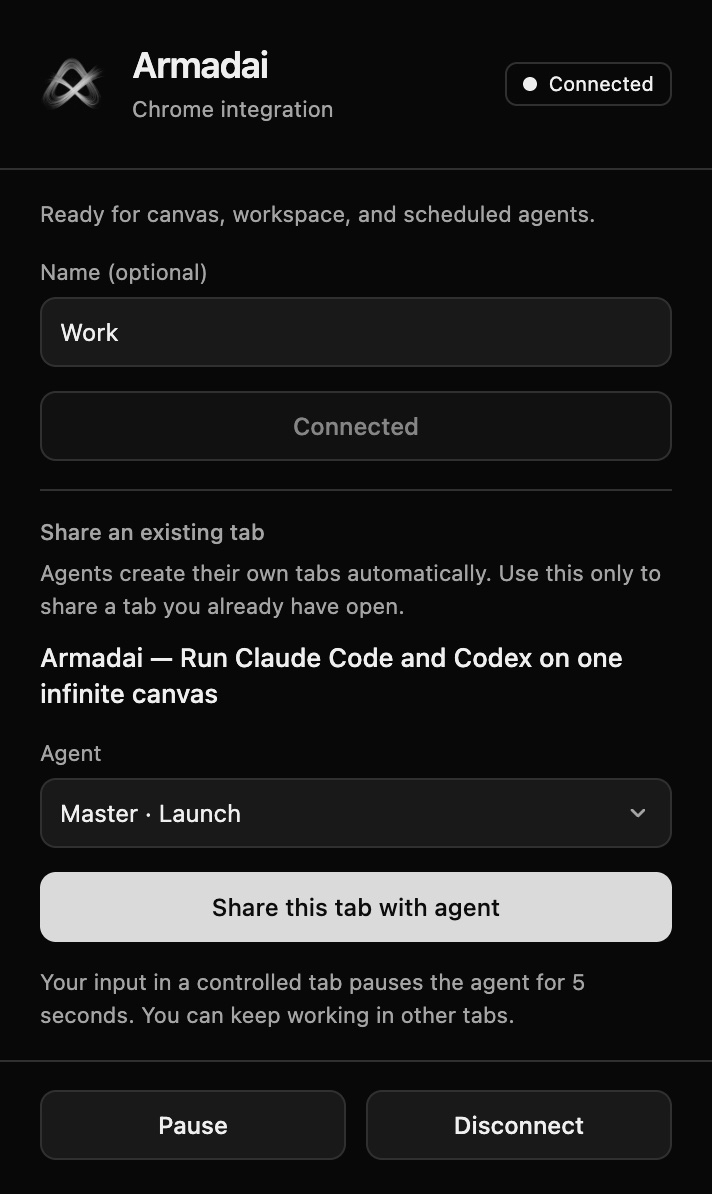
Open Settings → Chrome Extension → Enable Chrome Extension, load the extension that comes with Armadai, and choose Agree & connect. Reconnect extension repairs the link in one click.
Each agent gets its own tab group, named for the agent and its task, and its tabs open in the background. Scheduled runs get a group for their task.
A pointer in the agent’s color, labelled with its name, shows where it’s working. Your mouse never moves, and Chrome never jumps to the front.
Click, type, or scroll in an agent’s tab and that agent pauses for a few seconds while other tabs carry on. The popup’s Pause holds every agent until you resume.
Agents log in with Armadai’s Password Manager, including authenticator codes, without seeing the password. Card fills wait for your OK.
Agents upload from their workspace, or files you add with Allow more files…, and each session’s downloads land in a folder of its own under Downloads/Armadai.
Agents use the Chrome profile where the extension is installed. Name each connection, and Armadai remembers which one a task uses.
Automatic waits for pages that are still loading, or set a custom maximum of 30 to 120 seconds.
Claude Code, Codex, Grok, and Cursor work in Chrome as the master, in workspace tiles, and in scheduled tasks. Long steps keep running while the agent checks back.
The nine Chrome tools agents can call
Every plan includes the full app with unlimited workspaces and agents, plus a monthly Jev allowance.
7-day free trial — no card needed
$20/ month
$20/month, one month at a time.
Download to start trial7 days free, no card needed. Add one anytime in Settings → Billing → Add a card… to keep Armadai afterwards.
$120/ year
$120/year, which works out to $10/month, half the monthly price.
Download to start trial7 days free, no card needed. Annual payments have a 30-day money-back guarantee.
A reminder appears in the trial’s last three days. Promotion codes can be applied at checkout, and you can manage your subscription anytime from Settings → Billing. Download, take the guided tour of a sample canvas, and choose a plan inside the app.
Your projects. Your agents. Your canvas.
APPLE SILICON + INTEL / macOS 14+